

Guide
How to Hide YouTube Shorts on iPhone, iPad, and Mac
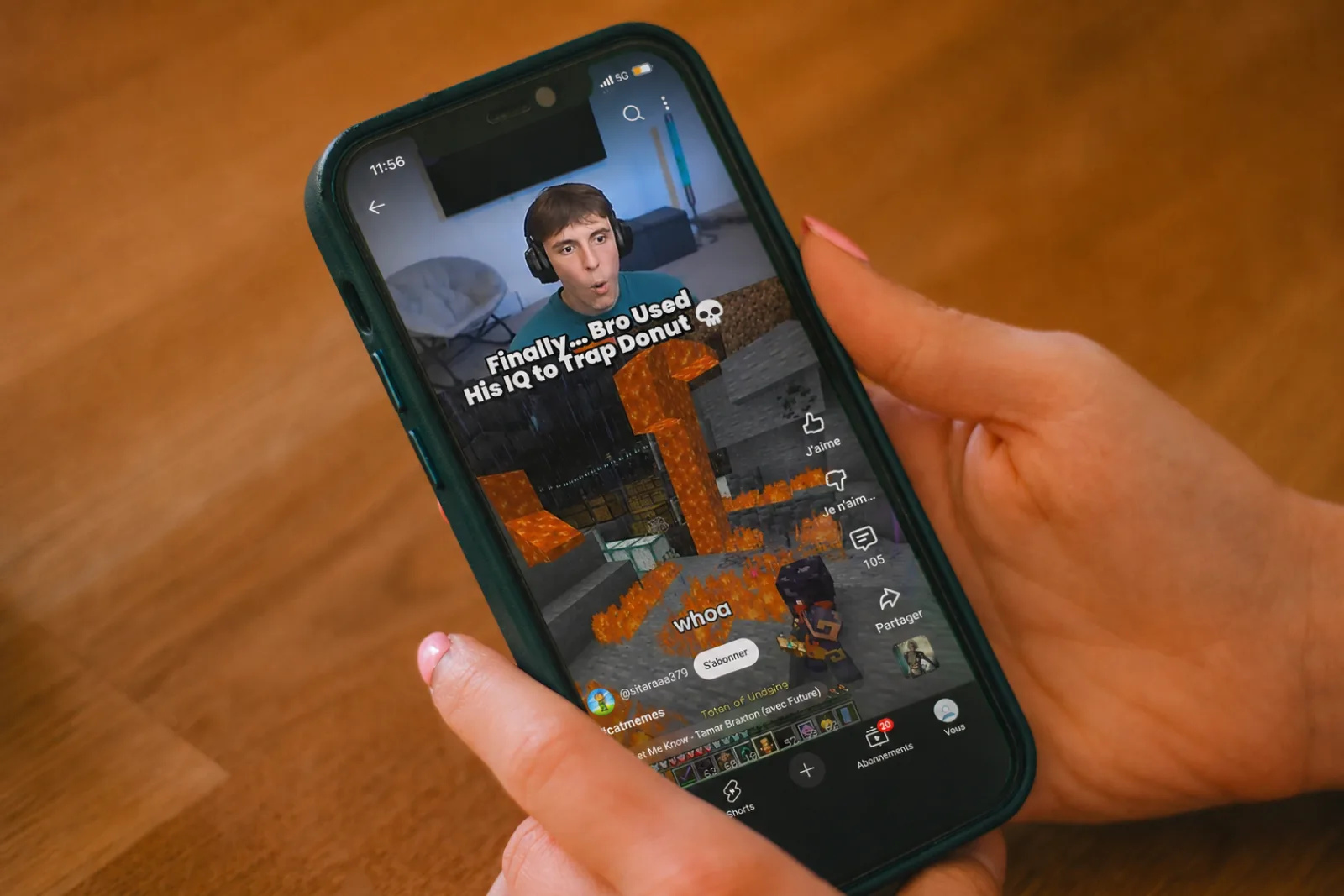
In March 2024, YouTube Shorts averaged more than 70 billion daily views (Alphabet Q4 2023 earnings, via DemandSage, 2024). The Shorts shelf is everywhere on YouTube: the sidebar, the bottom bar on mobile, the Home and Search feeds, and a dedicated tab on every channel. That ubiquity isn't an accident. Short-form video is engineered for compulsive scrolling, and a 2024 EEG study published through NIH/PMC found prolonged users showed reduced theta-band activity in the prefrontal cortex: the brainwave signature of focused attention (Yan et al., 2024). This guide walks through three honest ways to remove Shorts from your YouTube experience: the platform's own toggle, Apple Screen Time, and Nope (a free app on iPhone and iPad and a free Chrome extension on Mac), which handles every Shorts surface in one toggle. Pick the one that matches your device.
What “Hiding Shorts” Actually Means
Shorts shows up in four distinct places across YouTube's interface: a permanent Shorts tab in the sidebar (desktop) and bottom pivot bar (mobile); Shorts shelves injected into Home, Subscriptions, and Search; the /shorts/ watch URL itself, which auto-advances vertically; and a Shorts tab on every channel page. Different methods cover different subsets. Knowing which surfaces a method touches is the difference between “quieter” and “actually gone.” The chart below maps it out.
Method 1: YouTube's Built-In “Turn Off Shorts”
What it does in one line: hides the Shorts shelf on the Home feed for 30 days, then asks again. According to Pew Research (December 2024), 90% of US teens use YouTube and 73% use it daily, so the platform has every incentive to keep re-surfacing Shorts after the timer runs out.
Where to find it on iPhone or iPad (YouTube app):
- Tap your profile picture in the top-right.
- Tap Settings → General.
- Toggle “Turn off Shorts”. (The label sometimes reads “Hide Shorts” or “Don't show Shorts on Home” depending on app version.)
What it doesn't do.
- The Shorts tab in the bottom pivot bar stays.
-
Direct
/shorts/URLs (including ones in search results) still play vertically. - Subscriptions and Search results still surface Shorts.
- On the desktop web, the toggle is sometimes missing entirely depending on account region and rollout.
- The setting expires after 30 days. The next time you open YouTube, you'll see “Want Shorts back?” with a big Yes button.
It's a useful first move on the iOS YouTube app, especially if you can't or don't want to install anything else. Just don't confuse it with a permanent fix.
Method 2: Apple Screen Time on iPhone or iPad
What it does in one line: limits the YouTube app to a daily duration, or blocks it outright. It cannot target Shorts specifically. iOS has no per-feature controls inside third-party apps, only per-app ones.
How to set a YouTube limit:
- Open Settings → Screen Time.
- Tap App Limits → Add Limit.
- Pick Entertainment (YouTube lives there) or search for it directly, then set a daily duration.
The catch is right there in the design. Screen Time pops a full-screen reminder when you hit the limit and offers a cheerful “Ignore Limit” button one tap away. Even if you respect it, you'll still hit Shorts during your allowed minutes. The limit doesn't change the feed, only its duration.
Translation: telling yourself “I'll only Short-scroll for 45 minutes” can leave you scrolling longer than if you hadn't set a limit at all. Don't bring willpower to a fight with an app whose entire business is overriding it.
Method 3: Hide Shorts in Chrome on Mac (or Windows or Linux)
What it does in one line: removes every
Shorts surface (sidebar tab, shelves, channel tab,
and /shorts/ URLs) in one toggle, with no
30-day reset. We built Nope for exactly this. It's free, ships zero ads, has no
accounts, and sends nothing off your device.
Three steps:
- Install Nope from the Chrome Web Store. Works in Chrome, Edge, Brave, and Arc.
- Click the puzzle-piece icon next to the address bar and pin Nope so its icon is always visible.
- Open Nope, find the YouTube tab, and confirm “Hide Shorts” is on (it's on by default). Refresh youtube.com.
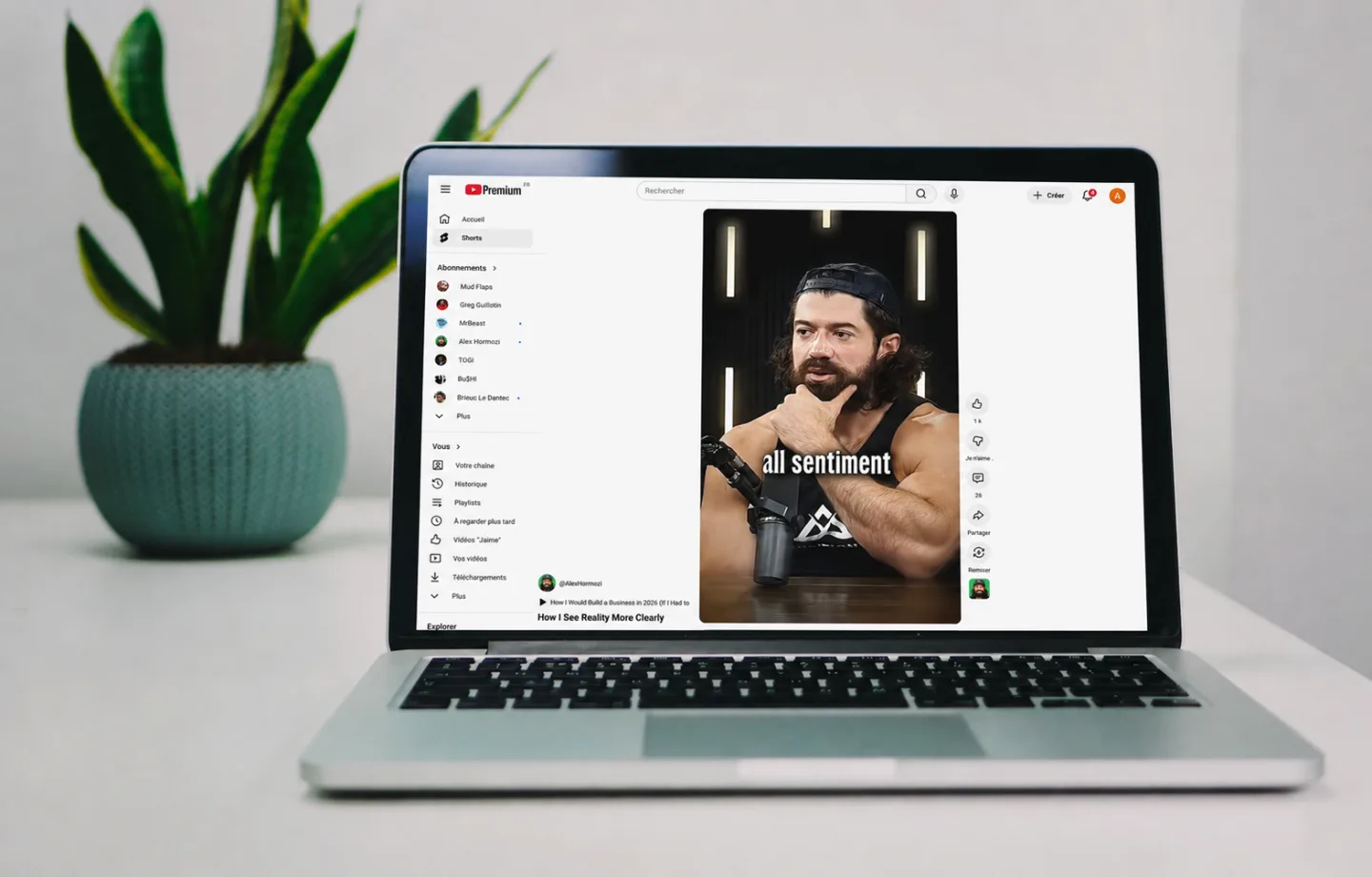
That's the whole setup. Reload any YouTube tab and the Shorts
sidebar entry, the Shorts shelf on Home, the Shorts row in
Search results, and the Shorts tab on channel pages all
disappear. Direct /shorts/ URLs redirect to the
regular home feed instead of opening the vertical player.
Method 4: Install the Nope App on iPhone and iPad
What it does in one line: a free App Store download gives you the same coverage as Method 3 on your phone. About 63% of YouTube watch time happens on mobile globally (Statista, 2025), so this is the surface that matters most.
Three steps (one-time setup, then it just works):
- Download Nope from the App Store. It's 100% free. Open the app once and walk through its built-in setup, which lays out the toggles for YouTube and Instagram and explains what each one hides.
- Tap the app's “Open Settings” button to give it permission to act on YouTube. Apple requires this one-time step for any app that affects what another website looks like, so iOS sends you to Settings → Apps → Safari → Extensions → Nope. Turn it on, then tap All Websites → Allow (or just allow youtube.com if you prefer to scope it tighter).
- Open m.youtube.com on your phone or iPad. The Shorts tab in the bottom pivot bar, the Shorts shelves on Home and Search, and the Shorts entry on channel pages are gone. Future toggle changes from inside the Nope app apply within about 1.5 seconds. No reload required.
Heads up: the YouTube iOS app itself is a closed box. Apple does not allow any third-party app, including Nope, to reach inside another app on iOS. The cleanest fix is to drop the YouTube icon from your home screen and add m.youtube.com as a home-screen bookmark from Safari (Share → Add to Home Screen). The result looks and feels like a YouTube app, just without the Shorts.
Common Mistakes to Avoid
- 1. Trusting YouTube's toggle alone. It handles one of four surfaces and resets every 30 days. Pair it with an extension or skip it.
- 2. Counting on Screen Time to save you. The “Ignore Limit” button is one tap, and the Silverman et al. work above shows time-based caps can backfire entirely.
- 3. Installing a desktop-only blocker. Two thirds of YouTube watch time is mobile. Cover iPhone and iPad too or you've fixed the smaller half.
- 4. Treating “hidden” as “unreachable.”
Hiding the Shorts tab still leaves Shorts links clickable in
search and on channel pages. The piece that makes the fix
stick is the
/shorts/URL redirect. Check that your chosen extension does it.
What Success Looks Like
After the right method is in place, your YouTube should pass a 4-point check:
- No Shorts tab in the sidebar (desktop) or bottom bar (mobile).
- No Shorts shelves on Home, Subscriptions, or Search results.
- No Shorts tab on channel pages.
-
Tapping a
/shorts/link sends you to the home feed (or to the regular watch page) instead of the vertical scroller.
If any one of those still triggers Shorts, the method you picked is incomplete. The combination that covers all four, on every device most people actually use, is Method 3 on the desktop and Method 4 on the phone. Both free, both one toggle.
Frequently Asked Questions
Does hiding YouTube Shorts also disable normal YouTube videos?
No. Hiding Shorts only removes the Shorts tab, the Shorts shelves on Home, Subscriptions, and Search, and the Shorts entry on channel pages. Watch pages, Search, Subscriptions, and the regular video player keep working exactly as before.
Will it work inside the YouTube iOS app, or only Safari?
Safari only. Apple does not let any third-party app reach inside another app on iOS or iPadOS. To get a Shorts-free experience on iPhone or iPad, install the Nope app from the App Store and open YouTube through Safari at m.youtube.com. Bookmark the page to your home screen (Share → Add to Home Screen) if you want it to feel like an app.
Is YouTube's setting to turn off Shorts permanent?
No. The built-in “Turn off Shorts” setting hides
the Shorts shelf on Home for 30 days, then prompts you again.
It also leaves the Shorts tab and direct /shorts/
URLs untouched. A browser extension is the only way to remove
all four surfaces and keep them gone. Covered in
Method 3 and Method 4 above.
Does the Chrome extension collect my browsing data?
Nope does not. There are no accounts, no telemetry, and no analytics. The extension only reads the YouTube DOM to hide the elements you toggled. The same is true of the iPhone and iPad app, where settings live in a local on-device container that never leaves your phone. Read the privacy policy for the full breakdown.
Why not just uninstall YouTube?
Most people don't want to lose tutorials, music, lectures, and their subscriptions. They want to lose the bottomless scroll. Hiding Shorts keeps the parts you came for and removes the part designed to hold you longer than you planned. If uninstalling worked for you, you'd already have done it.
Reclaim the Watch Page
The point of all this isn't “less YouTube.” It's getting the YouTube you signed up for (the watch page and the subscriptions box) without the slot machine bolted on. Method 3 plus Method 4 covers iPhone, iPad, Mac, and any Chromium browser, all at zero dollars. Install Nope on your devices and the next time you open YouTube, the Shorts tab simply won't be there.
Sources
- DemandSage, “YouTube Shorts Statistics 2026” (citing Alphabet Q4 2023 earnings call), retrieved 2026-05-09. demandsage.com
- Yan et al., “Mobile phone short video use negatively impacts attention functions: an EEG study,” NIH/PMC, 2024, retrieved 2026-05-09. pmc.ncbi.nlm.nih.gov
- Pew Research Center, “Teens, Social Media and Technology 2024,” December 2024, retrieved 2026-05-09. pewresearch.org
- Silverman, Srna & Etkin, “Time Limits as Reference Points: When Setting a Time Limit Increases Time Spent Online,” SSRN Working Paper, 2023, retrieved 2026-05-09. papers.ssrn.com
- Statista, “Share of total global visitor traffic to YouTube 2025, by device,” 2025, retrieved 2026-05-09. statista.com